Tuesday, 22 October 2013

Batch Testing using QTP


Executing Punch of testcase or series of tests

For Manual testing, each an every tetscases have the human interactions. But Automation tool with out human interactions its run group of testcases.


Four possibilities for Batch testing

1) using "Test Batch Runner Tool"  (Tool Feature
2 )using AOM Scripts (Automation Object Model) Vbscript feature
3)Using Driver Scripts in Automation Framework
4) Using Quality Center Tool (Test Management Tool)


1) Steps For Batch testing using test batch runner tool


a) Generate Basic test and run them once.
b) Launch Test Batch Runner Tool and Create test batches
c) provide permission to Test batch runner tool to Execute tests
d) Run Test Batches


Example :

a) Generate the basic test and run them once

b) Launch Test batch runner tool and create test batches

Start-> Program-> HP QTP -> Tools-> Test Batch Runner

Test batch saved as ext .mtb (Module test batch)


Batch -> Add -> select the test  repeat this steps and add all the tests which we run bulk.


c) provide permission to Test batch runner tool to Execute tests


 QTP -> Tools -> options-> Select Run from option window-> Check Allow other HP products to run tests and components (CTRL+ALT+F5)


d) Run Test Batches (Test batch Execution Process)

Test Batch runner launches and give instruct to the QTP, then QTP run the tests. Test batch runner not execute the tests. QTP only Execute the test.

Based on instruction from testbatch runner, QTP execute the test one by one.


Launch Test batch runner which we saved as .mtb.-> Slect the test which we want to run -> from menu Batch-> Run (F5)


Then its automatically launches the QTP and run the tests

e) See the results

Open the each an every test -> See the result in Test Result viewer   

We cannot see the result in the Test Batch Runner Tool. For clear test reslt from Result viewer, we can use test deletion tool.


Advantage

-> We can run all batch test or Partial test at week end.


DisAdvantage

-> Its not provide the result as per the batch test.We need to open each an every test and analysis the result.


QTP supports three feautures

1) QTP direct features- Recording, Object Repository, Checkpoint,Datatable
2) Integrated Tool from HP -> Password Encoder, Test Result deletion tool , Test Batch Runner

3)


Manual testing -> its Sequential Testing. because output from one testcase,input of other testcase. because manual tetsing need human interaction.

Automation testing -> Its End to End Testing. because no need human interaction.

How to import data from database into DataTable

We are not follow any formalities if we using text or Excel file as resorces. But we follow some formalities if we use database as resources

a) Create a database
b) Create Tables
c) Enter test data

d) Create DSN (Data Source Name) 

ConnectionString - if we want to connect QTP to database, connection string is required for connecting QTP and database

Defualt location for store DSN

C:\Program Files\Common Files\ODBC\Data Sources

e) Read data using SQL statements


we no need to close the database if we are using in QTP. becuase its internally close that application.QTP is ready made environment


Vb Script Automation objects. For VB scripting , we can test the same as which we test in QTP script. But user need to define everything for Excel,datatabel in VB Scripting. But the QTP is provide ready made environment like Datatable. so no need to close that application.


Example :

1) Create a datable for login with below fields in MS Office Access

UserName     Password

Arun        12345
Raj        45454
Ajay         45457


See Screenshot of the Table from MsAccess in below


2) Import from datatable

a) Right click on datatable -> Sheet-> import-> From database


b) From Database Query Wizard-> select option Specify SQL Statement Manually -> click next


c)Below steps for create Connection String

First we create the new DSN and then its create the Connection String


Select the appropriate  Driver for our database. Here we are using the MsAccess for our database. so we choosing tje corresponding driver as Microsoft Access Driver(.*mdb)


Give the any value while create new data source


 So from above step we are create the new DSN.
DSN is different and our database is different. Now we are going to connect both DSN and our Database using below method.


 Select the database from our local machine


Now we are connected the DSN and Database. So its generated the Connection String automatically. We are retrieve the data manually by writing the SQL Query in below


After execute the above query, the data are imported into the below datatable


The above data are imported from database into the datatable. So now we can follow the normal way and syntax for using those data. the syntax are,

Steps for Data Driven Testing using Data table

1) Genrate Basic Test and run it once
2) Launch Data Table and enter / Imprt test data
3) Connect test Data to the test
4) Run the test

Syntext for connecting test data to test using datatable

DataTable(Column id/"Column name", Sheet id/ Sheet name)


Import and Export from External Resources into datatable

We can import or export from below resources in datatable

-> Text file
-> Excel File
-> Database

Steps for Data Driven Testing using Data table

1) Genrate Basic Test and run it once
2) Launch Data Table and enter / Imprt test data
3) Connect test Data to the test
4) Run the test

Syntext for connecting test data to test using datatable

DataTable(Column id/"Column name", Sheet id/ Sheet name)


if we want to use Text file as resource, we can follow two syntex in datatable

1) First line is consider as Column header
2) in between two cloumn tab space is delimiter
2) from next line, the datatable consider as data.


if we want to use Excel file as resource, we can follow two syntex in datatable

1) First Row is consider as Column header
2) from second row, the datatable consider as data.


If we want to import above two files. follow below options

From Datatable -> Right Click-> File -> Import From file-> select Notepad or Excel


> if we record the application, the below code values are static.


Browser("Gmail: Email from Google").Page("Gmail: Email from Google").WebEdit("Email").Set "Arunrajvdm"
Browser("Gmail: Email from Google").Page("Gmail: Email from Google").WebEdit("Passwd").SetSecure "Arunrajvdm"
Browser("Gmail: Email from Google").Page("Gmail: Email from Google").WebButton("Sign in").Click


If we want to use dynamic values using datatable, we are following below below methods

1) use datatable and set the script as


Browser("Gmail: Email from Google").Page("Gmail: Email from Google").WebEdit("Email").Set DataTable(1,1)      ' 1 for First col, 1 for First Sheet(Global)
Browser("Gmail: Email from Google").Page("Gmail: Email from Google").WebEdit("Passwd").SetSecure DataTable(2,1) ' 2 for Second col, 1 for First Sheet(Global)
Browser("Gmail: Email from Google").Page("Gmail: Email from Google").WebButton("Sign in").Click


2) Use keyword and set the Parameter using configuring the value for DataTable

Browser("Gmail: Email from Google").Page("Gmail: Email from Google").WebEdit("Email").Set Parameter("UserName")
Browser("Gmail: Email from Google").Page("Gmail: Email from Google").WebEdit("Passwd").SetSecure Parameter("Password")
Browser("Gmail: Email from Google").Page("Gmail: Email from Google").WebButton("Sign in").Click


3) use Data Driven Method


Consider below static input scripts


Browser("Gmail: Email from Google").Page("Gmail: Email from Google").WebEdit("Email").Set "Arunrajvdm"
Browser("Gmail: Email from Google").Page("Gmail: Email from Google").WebEdit("Passwd").SetSecure "Arunrajvdm"
Browser("Gmail: Email from Google").Page("Gmail: Email from Google").WebButton("Sign in").Click


Tools-> DataDriver -> Select Variable and click Parameterize -> Parameterrize All -> Select parameter-> Select Parameter Options for type as DataTable and set the Name and sheet global or Action1

see below screen shot, its shows as input variables are constent. So want to change dynamic using this method.


 Select variable name and set global Sheet for Datatable


After that its set script as below automatically

Browser("Gmail: Email from Google").Page("Gmail: Email from Google").WebEdit("Email").Set DataTable("UserName", dtGlobalSheet)
Browser("Gmail: Email from Google").Page("Gmail: Email from Google").WebEdit("Passwd").SetSecure DataTable("Password", dtGlobalSheet)
Browser("Gmail: Email from Google").Page("Gmail: Email from Google").WebButton("Sign in").Click


Monday, 21 October 2013

QTP DataTable


->This is one of the resources for passibg dynamic values into QTP parameters


Global Datasheet -> The variable value which is used for all Actions

Action Datasheet -> The variable value which is used for only seperate Actions.

Rename Datatable Parameter name -> select the column which we want to change the parameter name->and double click for change the name

Datatable type :

-> Design time datatable  -> we give the input to the input parameter
-> Runtime datatable -> we can see the ouput

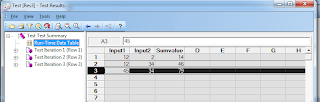
once the QTP run ends, its stored the results in Runtime datatable. So if we want to see the result goto
'Automation -> Results -> Run time datatable - to see the reults
The run time table is not saved in our design time datatable. we can see the result in our local system in below path = E:\arunraj\qtp\datatable1\Res3\Report\Default.xls


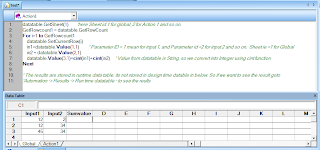
Script for Adding two values from datatable

datatable.GetSheet(1)        'here Sheet id 1 for global, 2 for Action 1 and so on.
GetRowcount1 = datatable.GetRowCount
For i=1 to GetRowcount1
    datatable.SetCurrentRow(i)
    in1=datatable.Value(1,1)         ' Parameter ID = 1 mean for input 1, and Parameter id =2 for input 2 and so on.  Sheet ie =1 for Global
    in2 = datatable.Value(2,1)
    datatable.Value(3,1)=cint(in1)+cint(in2)     ' Value from datatable is String, so we convert into Integer using cint function
Next

' The results are stored in runtime data table. its not stored in design time datable in below. So if we want to see the result goto
'Automation -> Results -> Run time datatable - to see the reults


Result from run time table ( Automation -> Results -> Run time datatable - to see the reults)


Script for Read the values from Excel and Store the values into the Excel

DataTable.Import("File Name") = Read the Values from Excel

DataTable.Export("File Name") = Insert the Values into the  Excel


Note: The Excel file should have the older version (.xls). The new version is not support under QTP.


Create the new Excel and save into "C:\Users\user\Desktop\Action Image\Datatable1.xls"
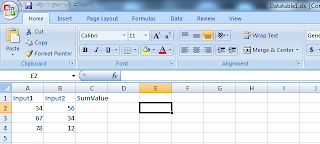


Extract all rows from above Excel and insert into datatable in QTP.then below method are same as which we are using in datatable


The Script is

datatable.Import("C:\Users\user\Desktop\Action Image\Datatable1.xls")  'Extract all rows and insert into datatable , then below method are same as which we are using in datatable
datatable.GetSheet(1)
GetRow = datatable.GetRowCount
For i=1 to GetRow
    datatable.SetCurrentRow
    in1=datatable.Value(1,1)
    in2=datatable.Value(2,1)
    datatable.Value(3,1)=cint(in1)+cint(in2)
Next
datatable.Export("C:\Users\user\Desktop\Action Image\Datatable2.xls)
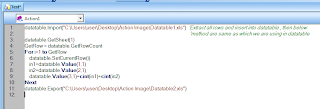


Then the results are stored into datatable2 Excel by using Export method
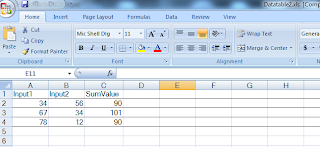


Delete the row from datatable

-> IF we select row and press delete button, the row from datatable is not permanantly deleted. The rows are still in datatable
-> if we want to delete the row from datatable use below method
    a) select row and press CTRL+K
    b) select row -> Edit-> delete


Working with datatable

QTP supports 3 objects named

-> Datatable
-> DTParameter
-> DTSheet

Script 1:

write program to import excel sheet to data table

Datatable.import("D:\EmpData.xls")


Script 2:

Write pgm to read data from the first parameter of global sheet

datatable.Import("E:\arunraj\notes\QTP\Example.xls")
Set dsGlobal = Datatable.GetSheet("Global")
set pmfirst = dsGlobal.GetParameter()
ds_Global_Row_Count = dsGlobal.GetRowCount()
print(pmfirst.Name)
for i=1 to ds_Global_Row_Count
print(pmfirst.ValueByRow(i))
Next


Script 3

Write pgm to read data from all sheets and all parameter of excel file

datatable.Import("E:\arunraj\notes\QTP\Example.xls")
Set countsheetobj=datatable.GetSheetCount()
For sheet=1 to countsheet1
    Set currentsheetobj = datatable.GetSheet(sheet)
    Set paramcount=currentsheetobj.GetParameterCount
    Set rowcount = currentsheetobj.GetRowCount
    print (currentsheetobj.Name)
    For row=1 to rowcount
        rowdata=""
        For param=1 to paramcount
            Set currentparam=currentsheetobj.GetParameter(param)
            rowdata= rowdata & vbtab & currentparam.ValueByRow(row)
        Next
    print(rowdata)
    Next
 Next


Script 4

Write pgm to insert data into the sheet in excel.

datatable.Import("E:\arunraj\notes\QTP\Example.xls")
Function PlaceDate(SheetName,ParamName,RowNumber,DataToAdd)
Set ParamObj= Datatable.GetSheet(SheetName).GetParameter(ParamName)
paramobj.ValueByRow(RowNumber)=DataTOAdd
End Function

PlaceData("Action1","Sheet1","5,"Demo USer")


Datatable using Hybrid Approach :(Using the DataTable by coding)

We are mixing the Readymade environment provided by QTP and Programmetic procedure


Datatable type :

-> Design time datatable  -> we give the input to the input parameter
-> Runtime datatable -> we can see the ouput. This is carbon copy of Design time dataTable


Script


1) Create Sheet at run time dable.

 By default Runtime DataTable have two sheets Global and Action1. So if we are add any sheet it placed from third sheet.

Syntax: DataTable.AddSheet "Sheet Name"

DataTable.AddSheet "login"

The sheet login placed in third place.

2) Import test data from an External File

Syntax  :  DataTable.importSheet "file name",Sheet from local Excel Source file, Sheet number from Destination DataTable Run time table

DataTable.importSheet "c:\login.xls",1,3

File Name = c:\login.xls
1 = Sheet number from Source File
3= Sheet number from Destination DataTable Run time table.


3) Syntax for DataTable ()

Syntax: DatatTable(Column number of Sheet from datatable, Sheet number of Datatable)

Ex: DataTable(2,3)

We can access the data from Third Sheet and all data from Second column in Data Table


Actions in qtp and type

What is action?

Acion is nothing but the set of task to perform some task, Every statement have to do some task in the application. This is called Action


Purpose of the Action

-> Reusability
-> Readability
-> easily locating errors

Types of Actions

-> Resuable Actions ( Default in QTP 11)
-> Non reusable Actions
-> External Actions
-> Opertions on Action


Example

As per the requirement create 3 Actions


Create a New Action                             Split Action

1) Create Required No of Action     1) Generate Entire Script into
(n-1)                                                         Default Action
Ex. Above Requirement we create          
only 2 action. + default Action=
total 3 Actions

2) Generate Script for our                2) Split the default Action. We can
every Action.                                        split one Action into two Action
                                                           at a time. not more than that.


1) Create a new Action


If we want to create a three Action as per our requirements, create 2 (n-1) Action, by using below method. we have already default Action, so totally three Actions we have in application.

INsert -> Call to New Action


Rename Action

Edit -> Action -> Rename Action


Delete Action

Select action From drop down box -> Edit -> Action -> Delete Action (But we cannot delete the Default Action. Atleast we have one Action in test)


Rename Action

Select action From drop down box -> Edit -> Action -> Rename Action


Test Pane in left side

View - Test Pane  ( its showing the sequence for Action Executions. we can change the test flow using drag and drop.)

Action Drop down

Its shows the all Actions in alphabetical order.


2) Split Action

If we our requirements using the Split Action, we should write all the script  under one Action, then we can split into one Action into Another Action.

We have below two options while Split the Actions

INdependent of each other  -> Max we used
Nested


How to change from Reusable Action to Non Reusable Action

1)Select the Reusable Action From Drop down box in Test pane
2) Edit -> Action -> Action Properties -> UNcheck the Reusable Action -> Click ok


How to record using three different Actions

1) Select First Action record whatever we want under this Action.
2) select newxt Action Still in under Recording mode, and record the which ever we want under Second Action.
3) Select Third Action Still under Recording Mode, and record which ever we want under third Actions.


How to call Existing Action


-> We should call the only Existing Reusable Action.we cannot call the non-Reusable Action existing in test.

-> Insert -> Call to Existing Action -> Select the test and select the Existing Resusable Action present in the test.

->  we cannot make any changes in the test which we are call  to Existing Action. Its Read only mode.


How to call to copy of Action

-> We can call both Reusable Action and non-Reusable Action existing in test.

-> Insert -> Call to copy of Action -> Select the test and select the Existing Resusable Action present in the test.

-> we can add, delete, Modify the Action. Because its Write Mode.


Action Parameters


Two type of Action Parameters

1) Input Parameters -> we can pass multiple dynamic values
2) Ouput parameters     -> Its used for return the ouput


-> Select the Action where we implement the input parameter for use dynamic values -> Edit -> Action -> Action Parameters

->  In window select Parameters tab. under this tasb we can see the below two options

a) Input Parameters
b) ouput Parameters


From TEST1 : Give the Variable name, Variable Type, Default Value, Descriptions and click ok


->From TEST1, Connect the parameters or passing the values

and set the parameter as synex: Parameter("Parameter Name ")

Browser("Gmail: Email from Google").Page("Gmail: Email from Google").WebEdit("Email").Set Parameter("UserName")
Browser("Gmail: Email from Google").Page("Gmail: Email from Google").WebEdit("Passwd").SetSecure Parameter("Password")
Browser("Gmail: Email from Google").Page("Gmail: Email from Google").WebButton("Sign in").Click


-> From TEST2,  Create new test and call the Existing Action and set the parameter value in under default action new test. set the parameter value as

RunAction "Login [Login]", oneIteration,"Ajay","raj"


-> This is for we are passing one one dynamic Values. But if we want to pass more than one values, that time we need resources like datatable,Excel etc..


-> give the Defualt value in Parent Action Parameter


QTP IDE (Integrated Development Environment)

From Earlier , the Mercuriy interactive Company have the owenership for QTP from  6 version. then its under by QTP after version 9


QTP 11 features

-> Supports Silver light Application
-> Test Result Summary doc new look
-> Support FireFox Browser if installed batches
-> Win7 supports with out any problem'


Drawback of manual testing

Time Consuming
More no of Employee
Not Accurate
Resgress or restest is more time Consume


When we go for Automation or how to decide the application should automation

1) How big the application ( If have more functionality to test )
2) When the  application is stable. All the requirements are implemented in web application.
3) for Regression testing
4) Testing the Functional or non-Functional testing


Functional Testing tool

QTP
Silk test
selenium


Non functinal test

Win runner
load runner
Jmeter


QTP IDE ( Integrated Development Environment )

Experview and Keyword View

white page - Test pane window wher we writing the script

We are using Vb Scripting for give instruction to QTP

Expert View - see the Vb Script format
Keyword View - The same above script we can see as Graphical Representation


View menu


1) Active Screen window

If we run the script on any application. The Active Screen shows Screen shots of that application.


2) Datatable

This is an Excel Sheet where we can store Test data

3) Debug Viewer

This is assist us for bebug our scripts. To debug the syntex error, Run time Error.

For viewing syntex Error Tools-> Check Syntax or Press CTRL+F7


4) Missing Resorces Pane

If we are using some Excel file in test script and use that data from Excel,

But if fails to attched the Excel file in Environmant variable that time this pane shows the details in Mising Resources pane.


5) Informtion pane

Its shows information about if any syntax error in Test script


6) Test Flow

Its shows the information about the test flow.


Record and Playback

F3 or Automation-> Record

Record the test process and play back

or we can write the teatcase manually and play back


Explain Vb Script


All the VB Script statements contains below three part

1) Hierarchy  ( Parent - Child Relationship)
2) Method or Operation  ( What operation we made on objects)
3) Value  ( value for the objects)


EX

Dialog("login").WinEdit("Agent Name:"). Set "Arunrajvdm"

Here below are values

Hierarchy = Dialog("login").WinEdit("Agent Name:")
Method = Set
Value = Arunrajvdm


Object and Object Class

All Objects are categarized and belongs to one object Class.
Ex: If dog is objct, Animal is object Class


Object Class     Object

WinEdit   -> Edit box, Check Box
WinButton -> ok, cancel
Dialog    -> Any pop up in window


EX

Dialog("login").WinEdit("Agent Name:"). Set "Arunrajvdm"

Syntax : ParentObjectClass("Name"). ChildObjectclass("Name").Operation "value"

If you need to reach any object in application. we should know the Hierachy of the object. The Hierarchy of above code is

Hierarchy = ParentObjectClass("Name"). ChildObjectclass("Name")

If you need to do some operation on object, we should know the operation or moethod

Methods = Set

If you need to assign any value into that object, set the value

Value = "Arunrajvdm"


Basic method for the objects


WebEdit   =  Set
WebButton =  Click
WebList   =  Select

Type of QTP Recording


1) Normal Rescording Mode or Context Sensitive Recording mode

This is the recording we are used mainly. Its recording for click the

button,enter value in Edit box, Select the item from list box.


2) Low Level Recording Mode

IF QTP doesnot recognize the test environment then its automatically turns

into the Low level recording mode.

That means if we want have the Terminal Emulator Add-in in our QTP, But if we

try to record the our QTP on Terminal Emulator, that time its automatically

turns into the low-level recording mode.


For web based Add-in for Edit Box under class = WebEdit
For window based Add-in for Edit Box under class = WinEdit
so each an every Addin have different Classes for every object. But if we

dont have the Add-In for our recording then its trurns into Low level

Recording. So that time QTP have one below two object class

-> Window
-> winobject

but the Record and Playback concepts are may  failed for low level Recording.

Because the low level recording is performed by Postion of the object. So if

any difference in the object Postion between Recording mode and Run mode, its

get fails.


3) Analog Recording Mode

Recording for painting and drag events like mouse drag events.And record any

digital signature made on the application.

Steps: Select Analy Recording mode button after normal recoding, we see th

tow options ike

i) Record relative to the screen - whatever we can made mouse operation on

windows, its may recorded.

ii) Record relative to the following window - we can select the only on 

window which we want to capture the mouse operation only on this window, that

may recorded.

The Analog recordings are saved as Tracks